
A daily batch closeout submits your completed card transactions for settlement so your processor can move them toward merchant funding. An approved payment alone doesn’t mean the money has reached your business bank account.
For your business, this routine supports predictable cash flow and clearer sales records. Understanding what happens behind the receipt makes closing time easier for everyone responsible for your payments.
What a Daily Batch Closeout Does
A batch is a group of card transactions collected during a processing period. Closing it finalizes that group for submission, either automatically or through your POS system.
Authorization and capture prepare the payment
Authorization means the customer’s issuing bank approves the payment amount, typically placing a temporary hold on available funds. Capture submits the approved amount for settlement.
Some payment workflows combine these actions. Mastercard’s transaction types documentation explains that a purchase or sale can combine authorization and capture in one message. Your terminal’s approval message still isn’t confirmation of a funded deposit.
Settlement and funding complete different jobs
Settlement moves funds between the financial institutions involved. Merchant funding is the later payout to your business under your processing arrangement.
For Clover, closeout processing can take up to 50 minutes from the start of the closeout time. Deposits settle in 1 to 3 days after closeout. Exact timing and procedures vary by processor and funding arrangement.
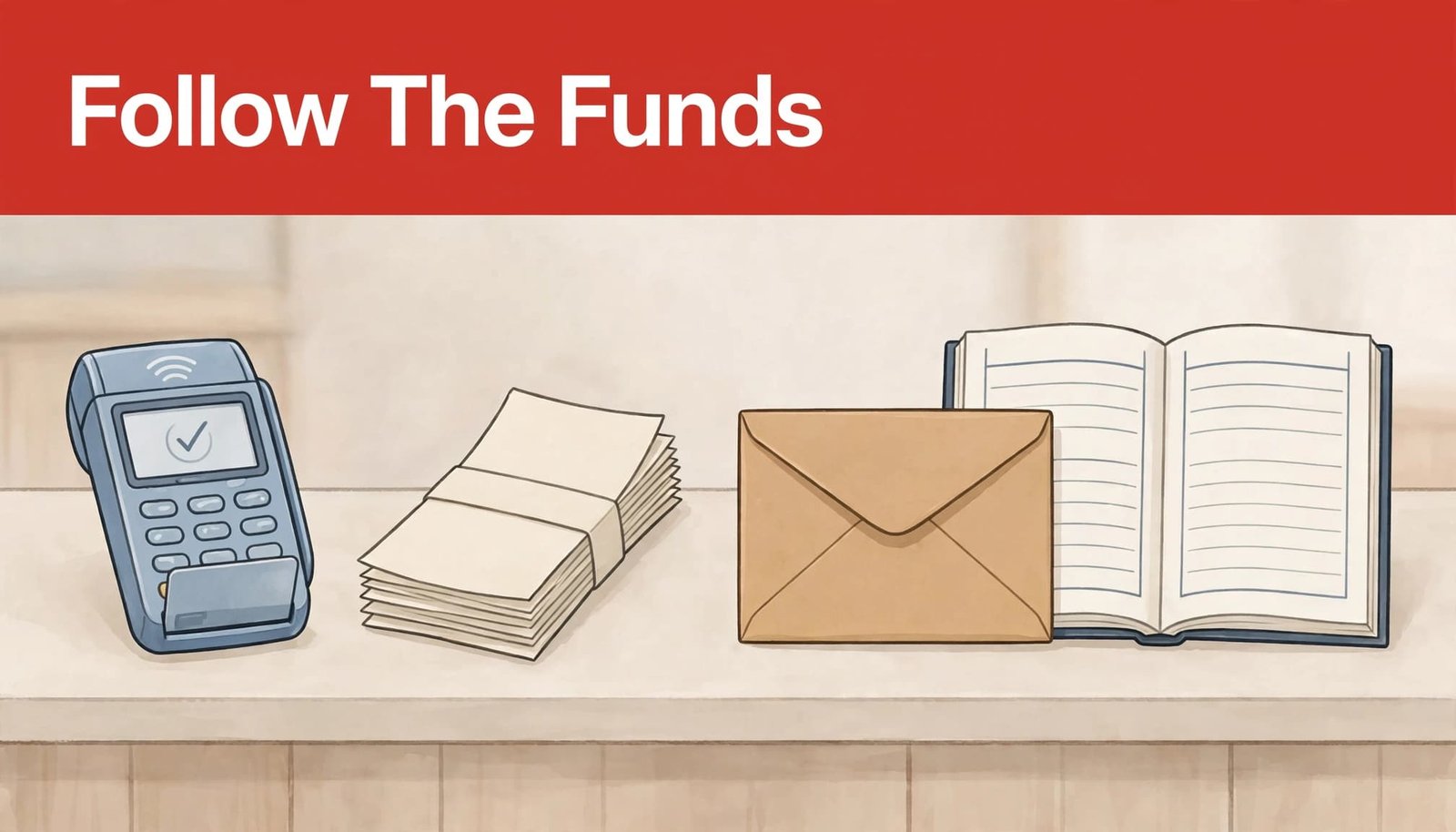
Why Closing Batches Daily Matters
Daily closing keeps transactions moving toward funding and gives your staff a consistent reporting period. That makes it easier to connect completed sales with the batch submitted for payment.
Not closing a batch on time can delay submission and the resulting deposit. Closing late can also place sales in an unexpected processing period, complicating your end-of-day records.
We recommend treating closeout as part of your daily accounting routine. Review transaction counts, complete eligible tip adjustments, and retain the batch reference. Our guide to matching sales to bank deposits explains how those records support reconciliation.
A closeout report confirms batch activity. It doesn’t prove the corresponding deposit has reached your bank.
How to Close a Clover Mini or Mobile Batch
Before closing any terminal, review the current batch and finish permitted adjustments. If your system closes automatically, complete this review before its scheduled closeout.
On a Clover Mini or Clover Mobile, follow this sequence:
- Tap the green “close out” button in the lower-right corner of the home screen, or open the Closeout app.
- Select the yellow “view transactions” button to review the current batch.
- Open “view open tips” to find receipts without tips added. Complete the applicable tips before closing.
- Tap the green “close out all devices” button and confirm. A notice indicates that the batch is queued for processing.
A queued notice means processing has been requested. Allow the closeout processing window before expecting completed details.
Clover closeout details are available to merchants with Station, Mini, or Flex. The Mini/Mobile button sequence above shouldn’t be treated as identical instructions for every model.
Where to Find, Print, and Email Closeout Reports
Your closeout report, also called the batch report, records the transactions submitted. Viewing transactions before closing doesn’t replace reviewing the resulting closeout details.
View reports on the Clover dashboard
Sign in to the Clover dashboard, open the Finances menu, and select the relevant closeout details. Review the batch associated with the processing period you’re reconciling.
Viewing, printing, and emailing reports requires the “Access Closeout > Print closeout reports” permission. Review employee permissions and confirm each staff member has the permissions needed for their role, while keeping account-owner email delivery separate.
Print on the device or enable owner emails
Open the device’s Closeout app to view closeout details and print reports on receipt paper. File the receipt paper copy with the day’s closing paperwork.
Only the account owner can receive the batch closeout report by email. To enable delivery, open Settings, select View all settings, then Notification Preferences, and choose Edit. Tick the email checkbox and select Save. To change the delivery setting later, return to Notification Preferences.
To stop automatic printing, open the Closeout app settings and clear the “Auto-print Totals Report on closeout” checkbox. You can still print reports when your closing process requires them.
Key Takeaways
Daily batch closeout connects completed card sales with settlement and funding. Review transactions and tips first, retain the closeout report, and distinguish a submitted batch from money deposited into your bank account.
Frequently Asked Questions
Does an approved transaction mean we’ve been paid?
Approval confirms authorization, not merchant funding. Mastercard’s capture operation documentation describes how capture uses the earlier authorization to initiate the transfer. Settlement and your processor’s payout schedule still determine when your business receives the money.
Does every merchant need to close batches manually?
No. Systems may use automatic closeout or require a manual action. Your processor and terminal configuration determine the procedure. Staff should still review transactions, finish permitted adjustments, and review the resulting closeout report.
Make Closeout Part of a Reliable Closing Routine
A consistent daily batch closeout helps your business maintain clear payment records and avoid preventable submission delays. Authorization, settlement, and funding are separate stages, even when checkout takes only seconds.
Assign responsibility for reviewing transactions, completing tips, and retaining reports. That routine gives your team better control over the payments your business depends on.